minho kim
Gimbap
A Dock for your Mac, with themes.
Gimbap takes the place of the macOS Dock at the bottom of your screen. It shows the same apps, folders and Trash, works the way the Dock does, and dresses it up with themes and effects, from a plain glass Dock to lava, water, popcorn and an ASCII terminal.
Price: US$15 once, for up to 2 Macs. Gimbap needs a licence key to run.
Version 0.3.2 · macOS 15.6 or later
Themes
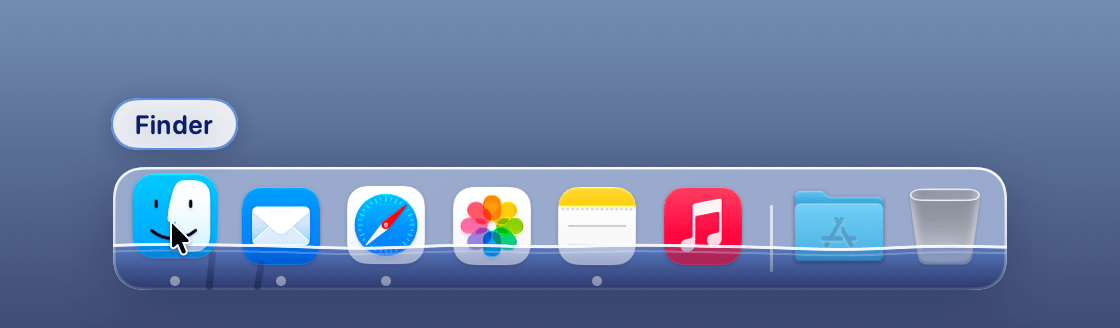
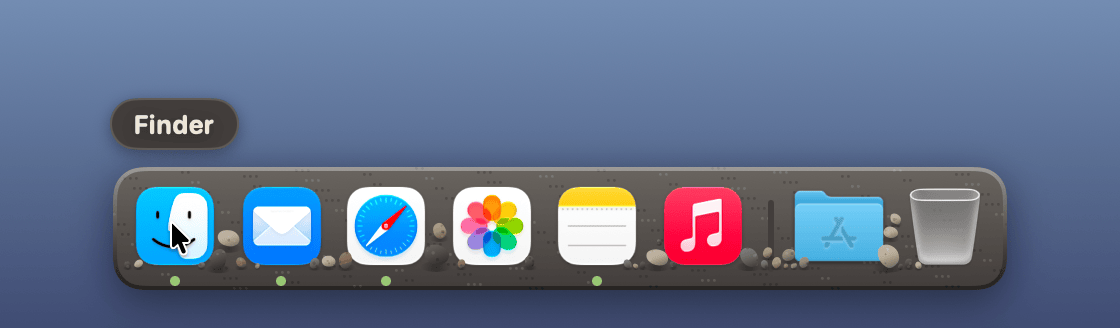
Glass (the macOS Dock’s own look), Water, Rocks, ASCII, Aurora, Brutal, Y2K, RPG, FPS, Live Fire, Popcorn, Balloon, Glitter, Clothesline, Lava and Fart. Most come in several colour sets, and every theme can take a background pattern and a choice of running-app marker. Effects play only when you hover over or click an icon; at rest the dock is still and uses next to no energy.
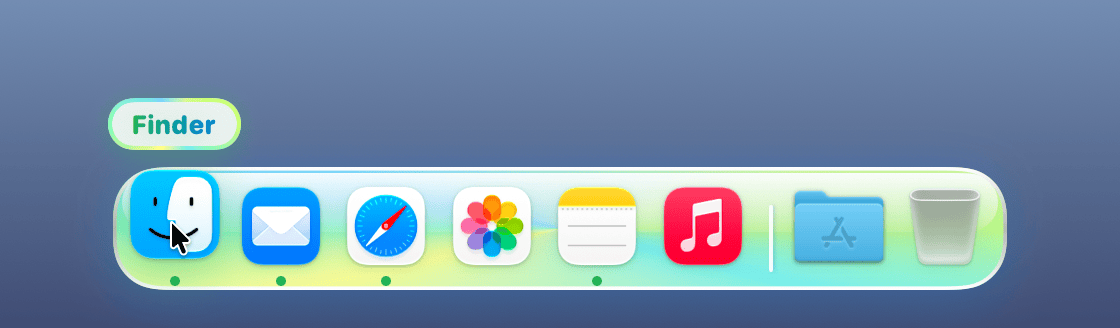
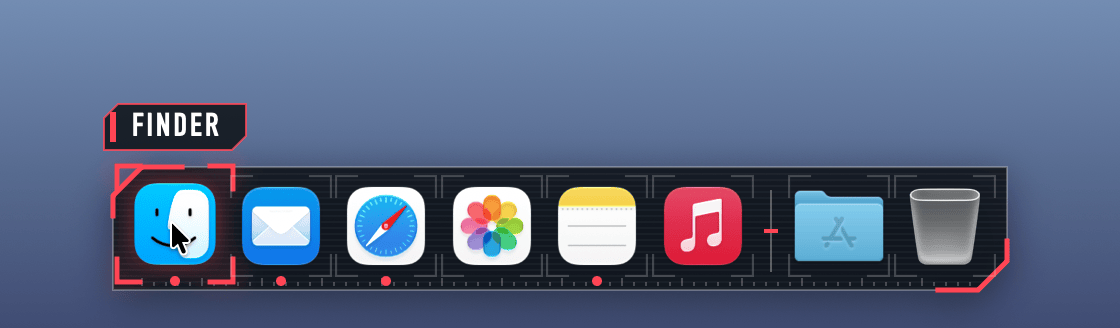
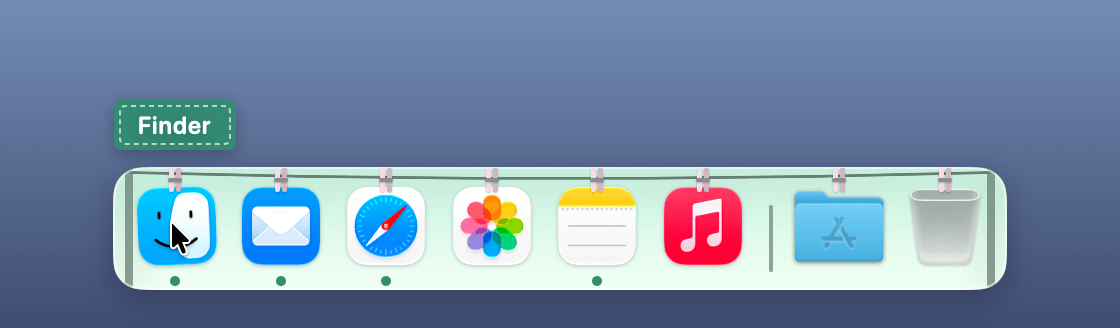
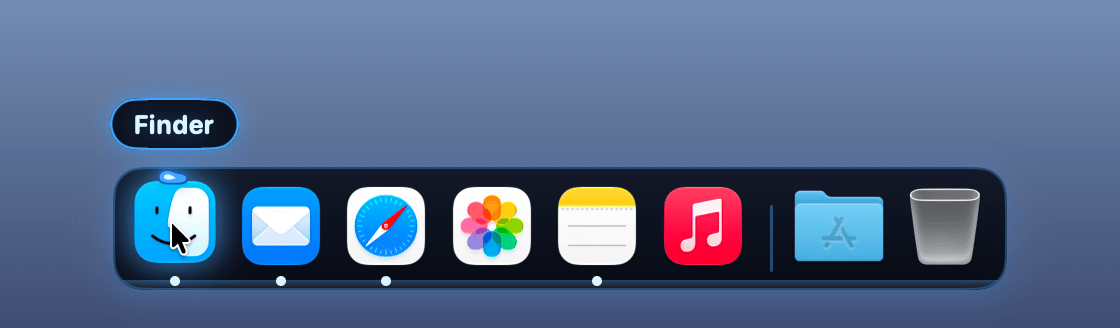
Each picture shows the pointer resting on Finder.
Glitter
Party
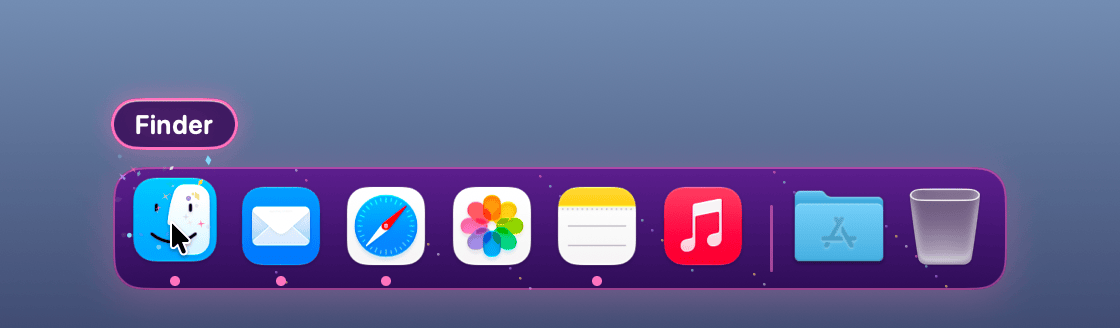
Gold
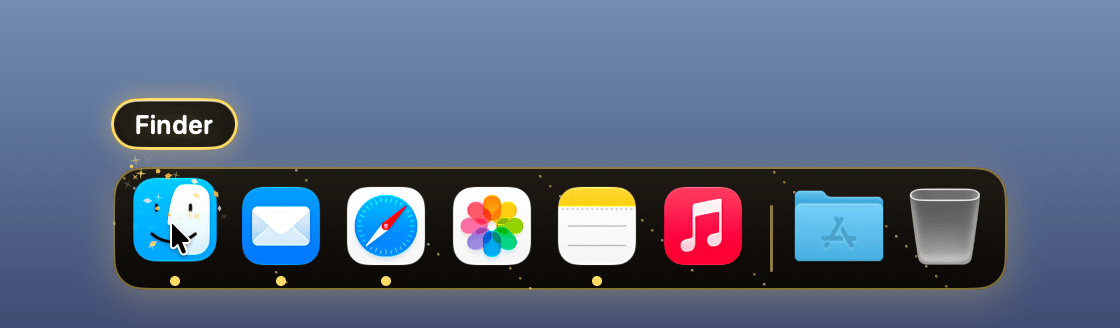
Rose
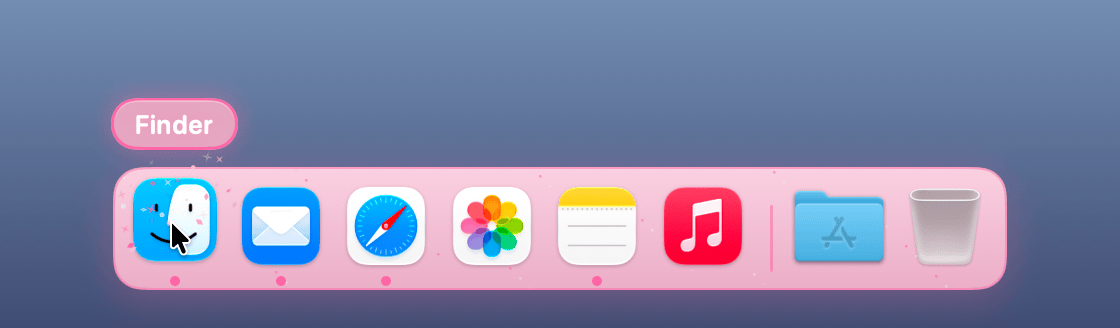
Water
Lagoon
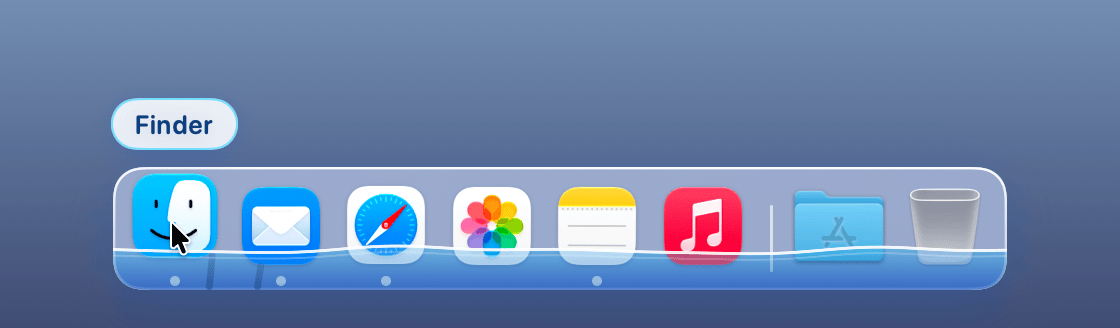
Tropical
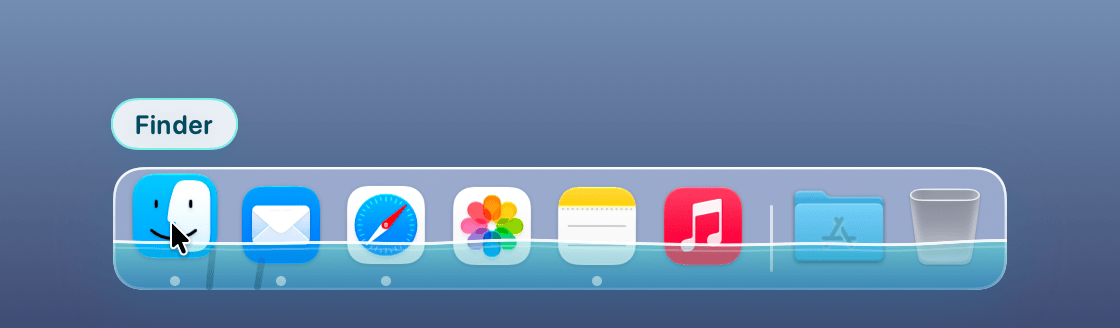
Night
Rocks
Granite
ASCII
Green
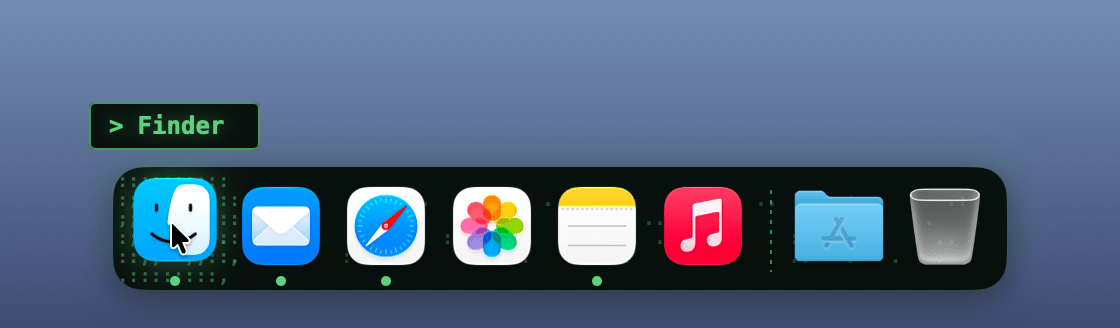
Amber
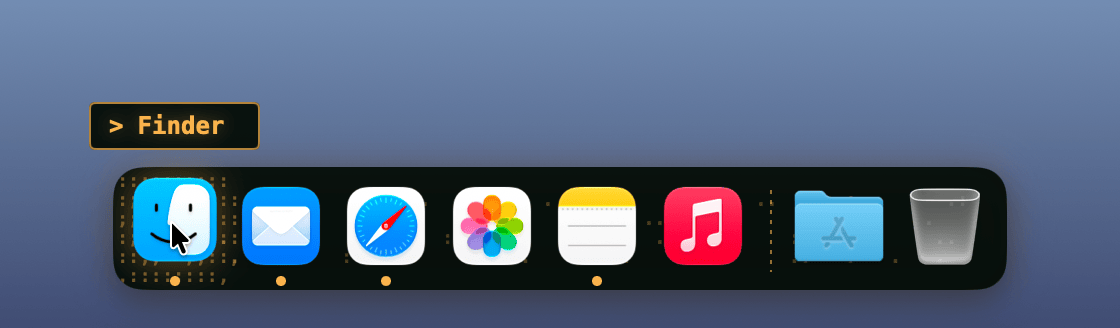
Ice
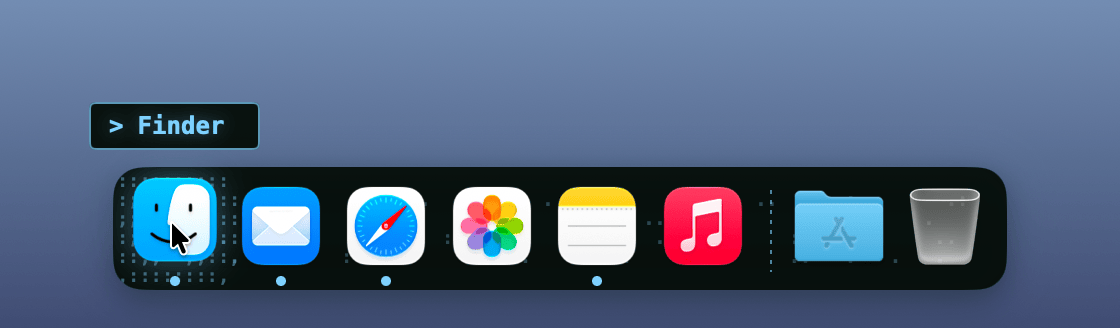
Rose
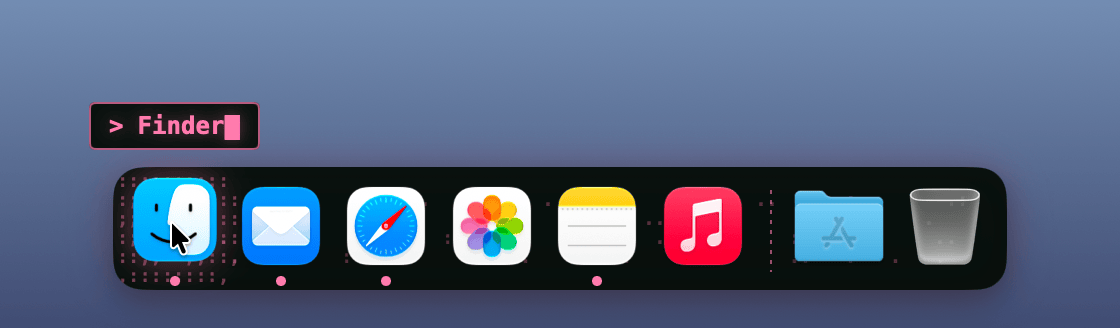
Aurora
Pastel
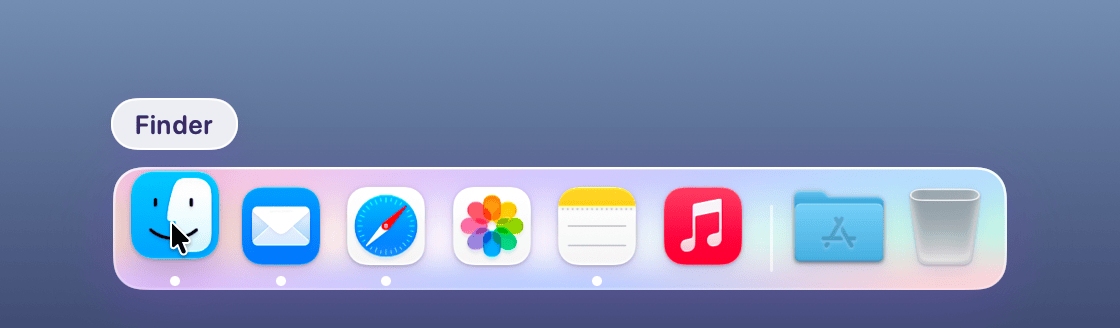
Sunset
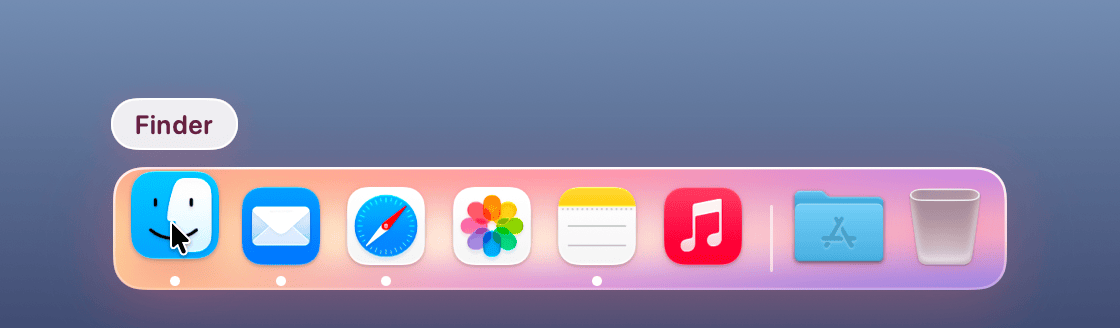
Ocean
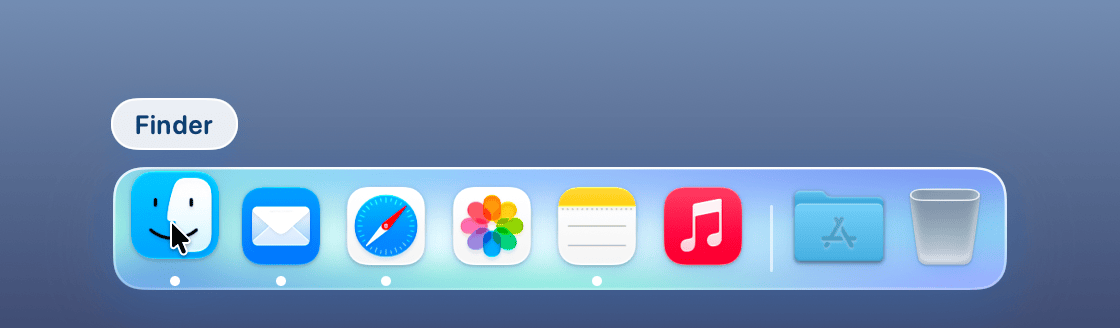
Brutal
Lemon
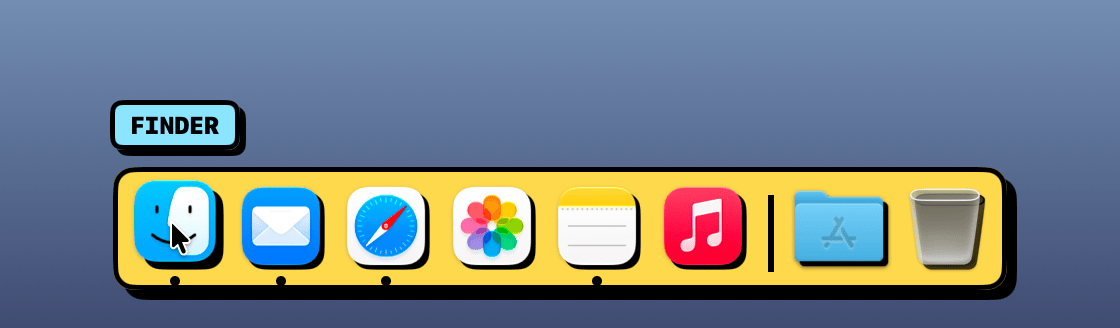
Bubblegum
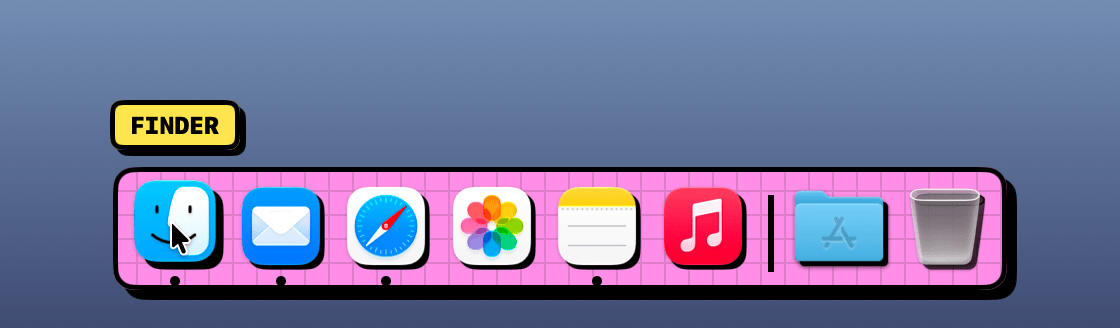
Mint
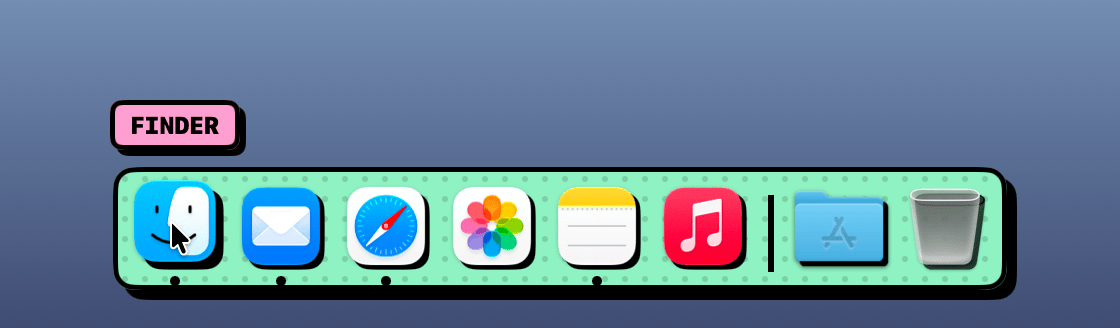
Cobalt
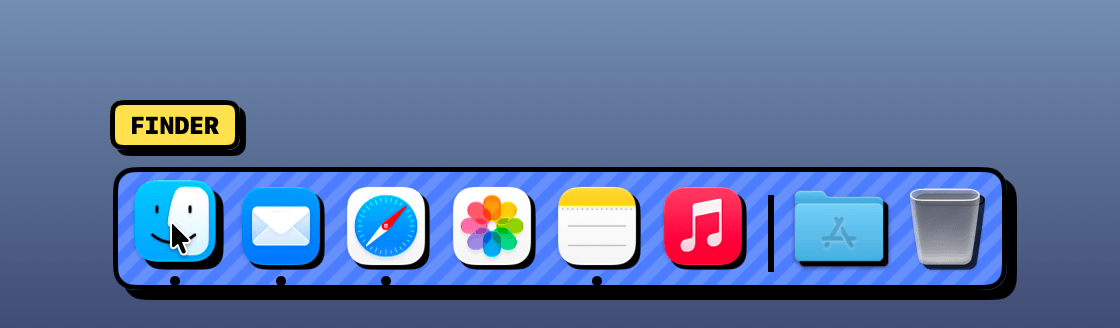
Tangerine
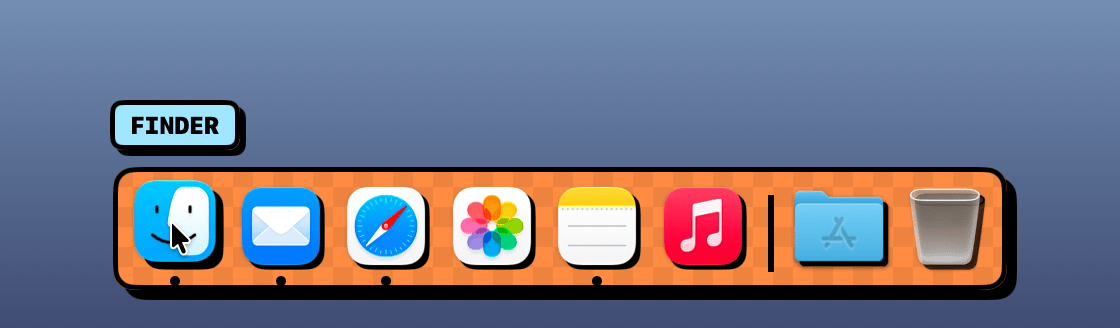
Y2K
Holo
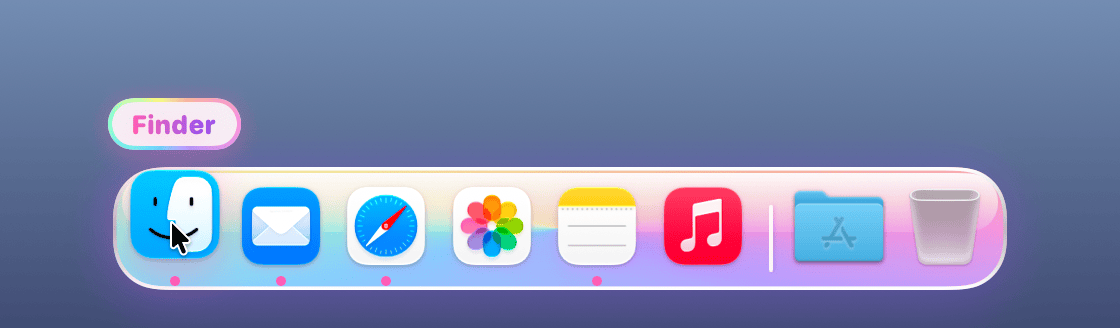
Bubblegum
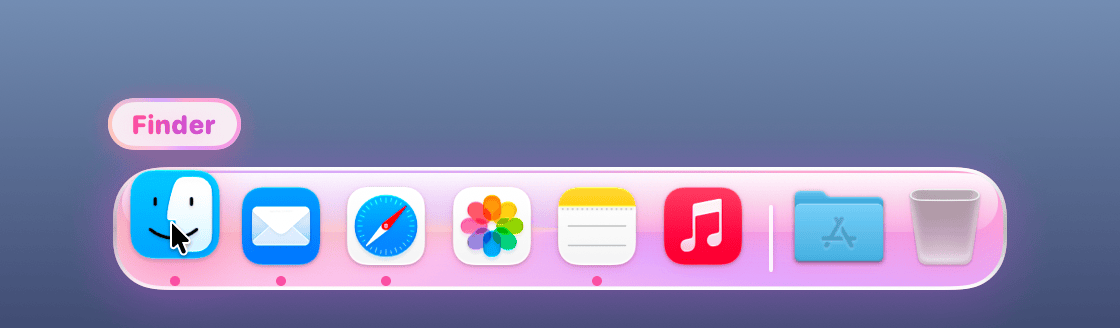
Lime
RPG
Gold
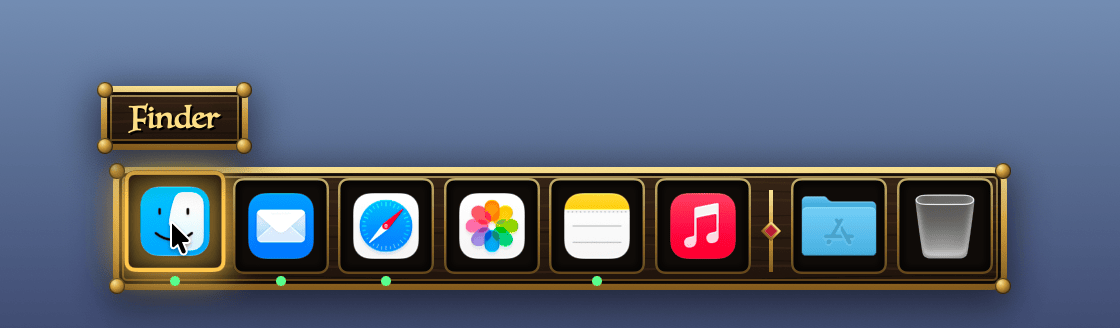
Silver
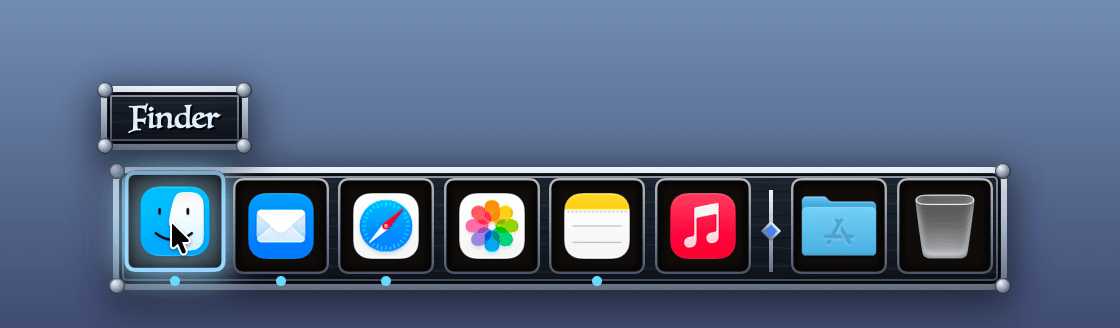
Crimson
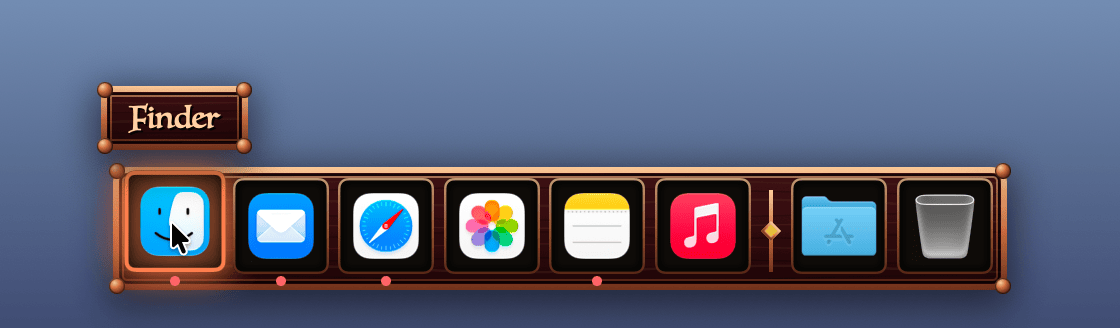
FPS
Amber
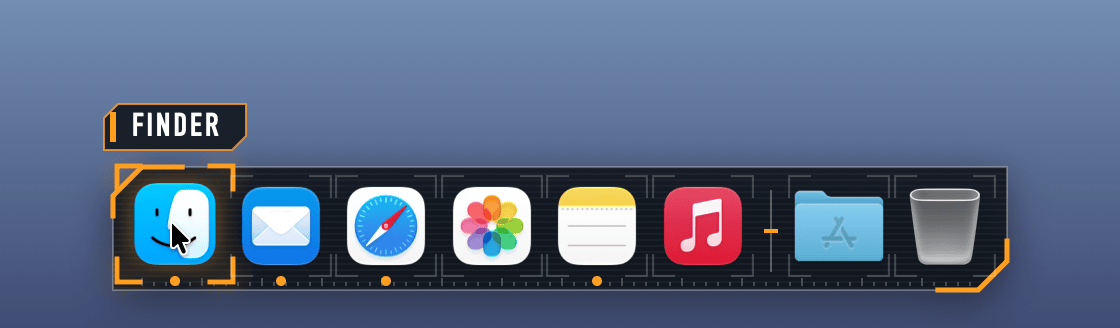
Crimson
Arctic
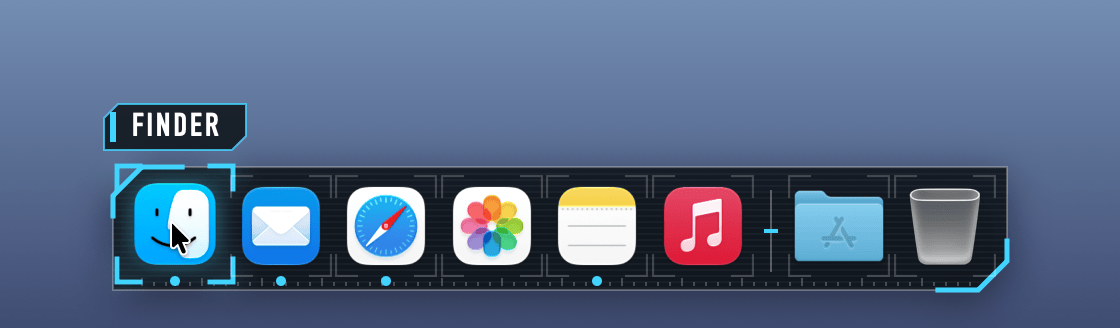
Toxic
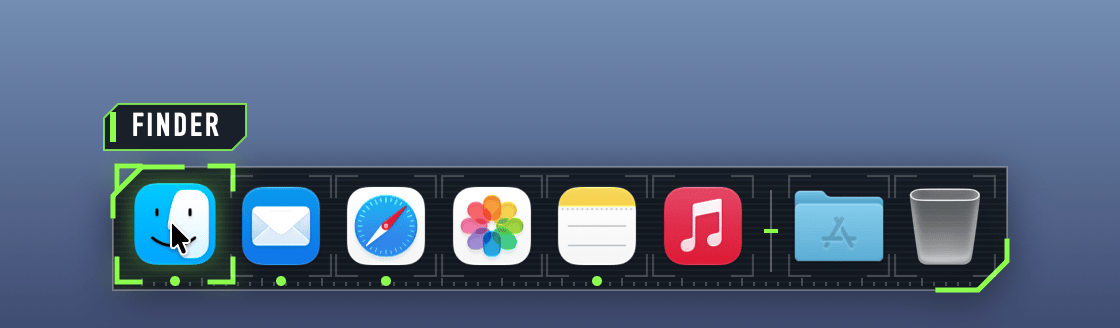
Live Fire
Amber
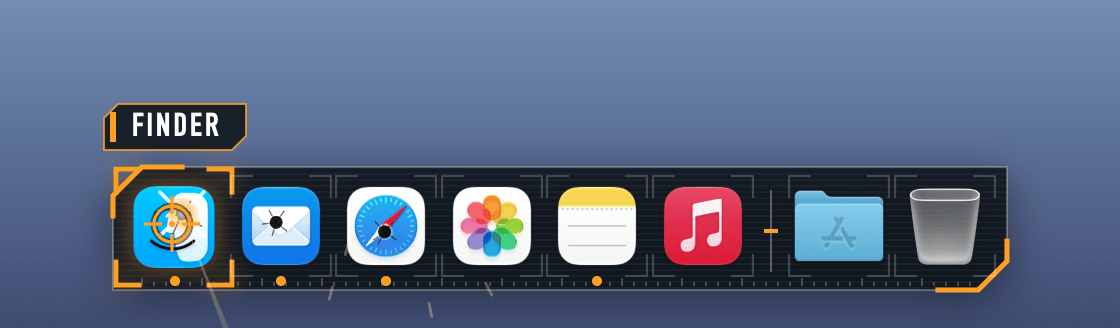
Crimson
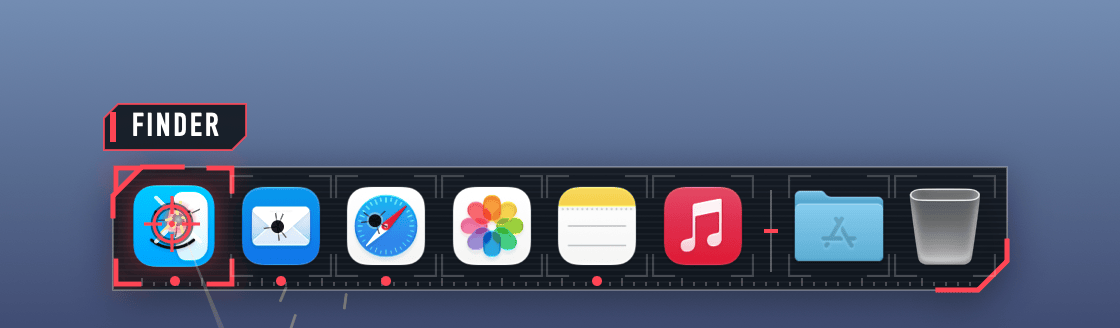
Arctic
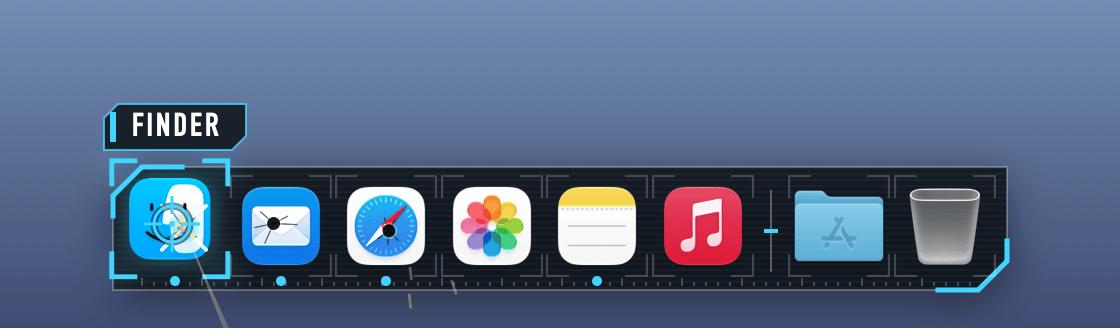
Toxic
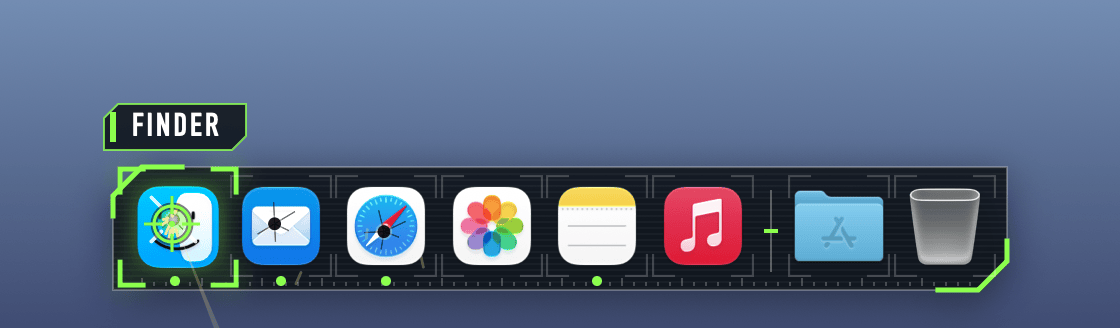
Popcorn
Butter
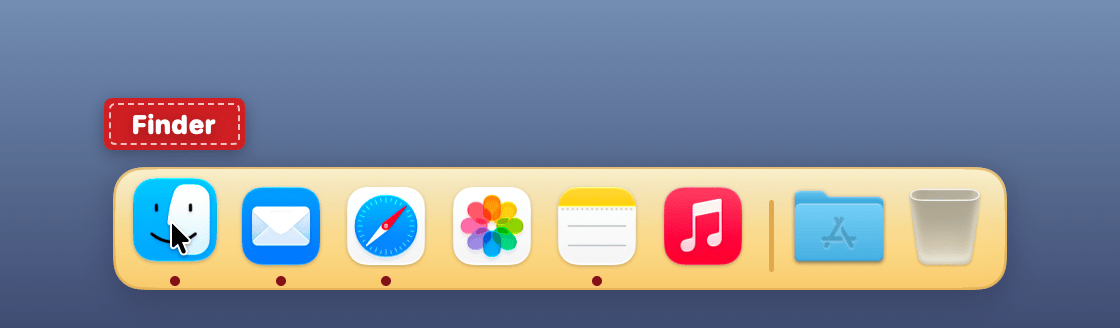
Caramel
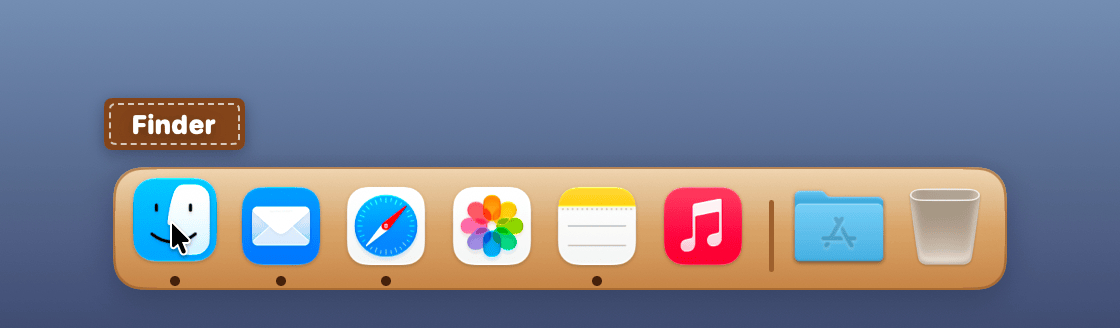
Kettle
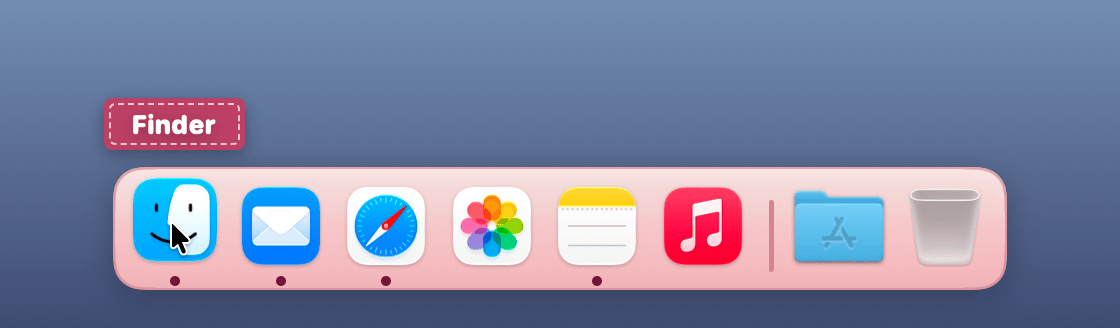
Balloon
Sky
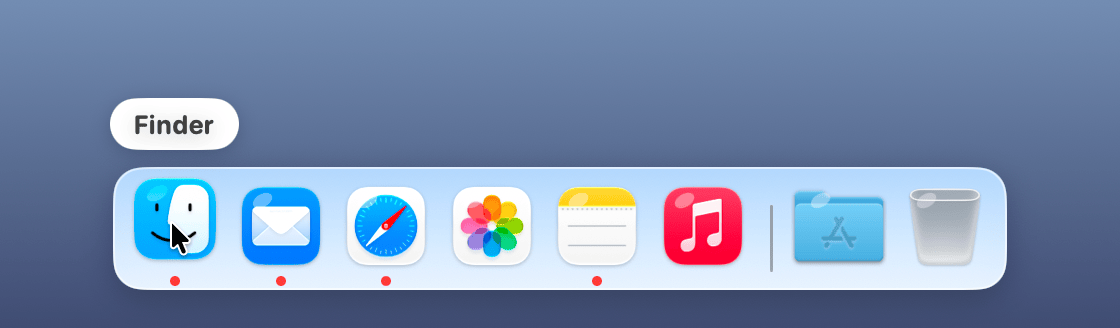
Party
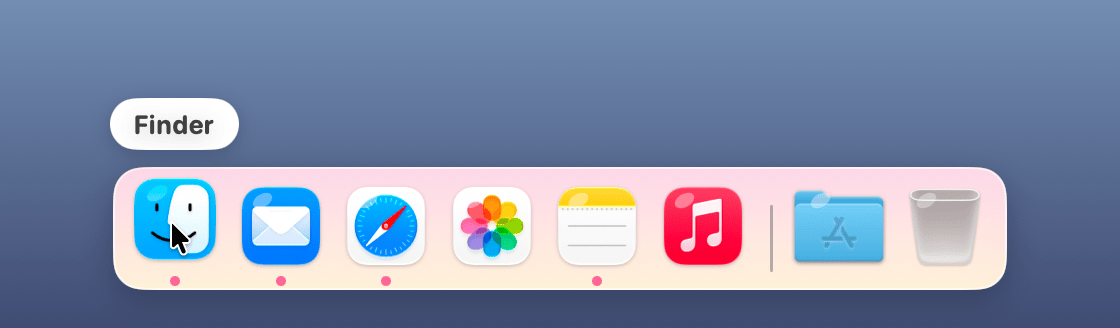
Night
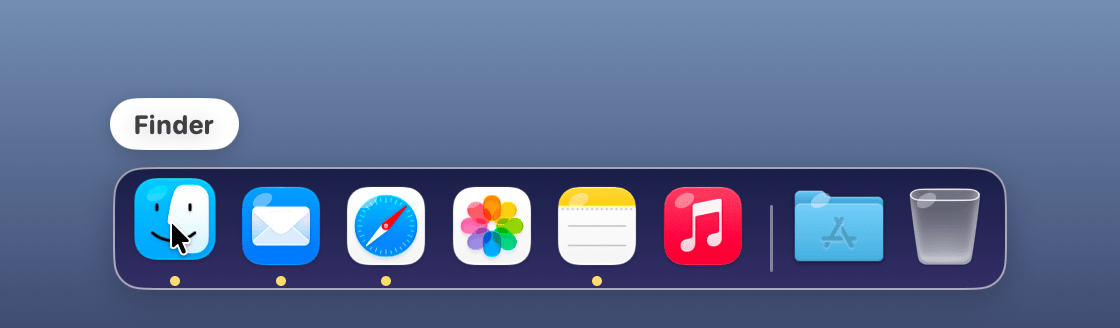
Clothesline
Backyard
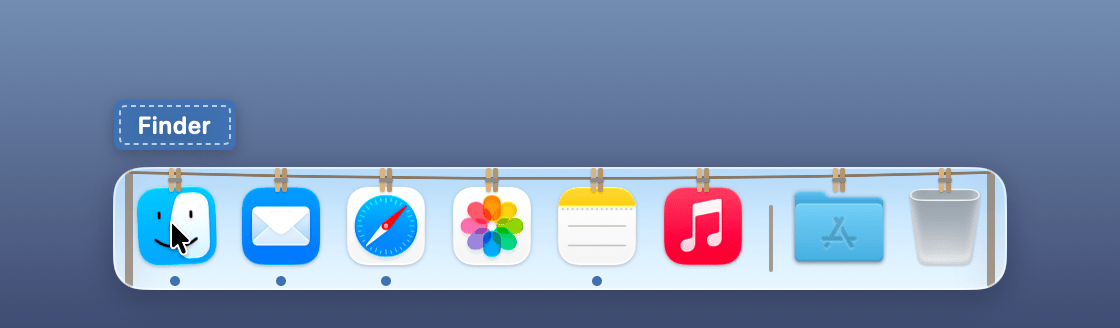
Sunset
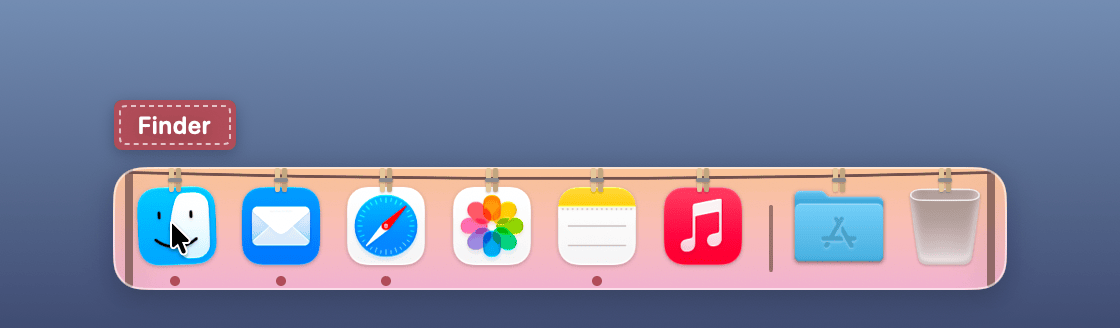
Mint
Lava
Magma
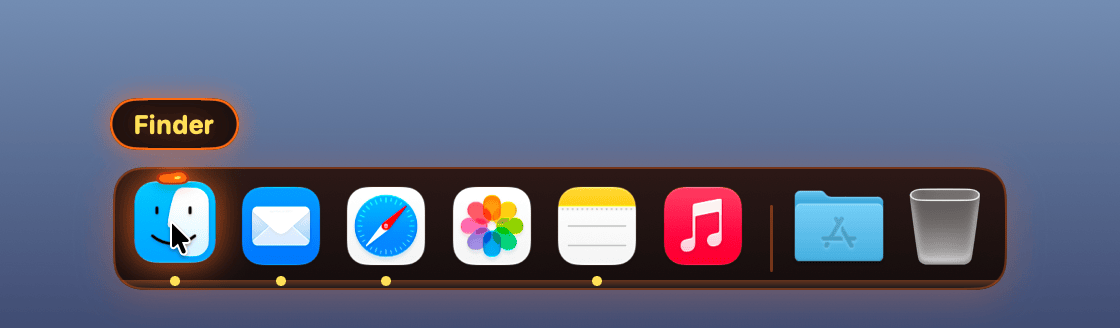
Sulfur
Fart
Swamp
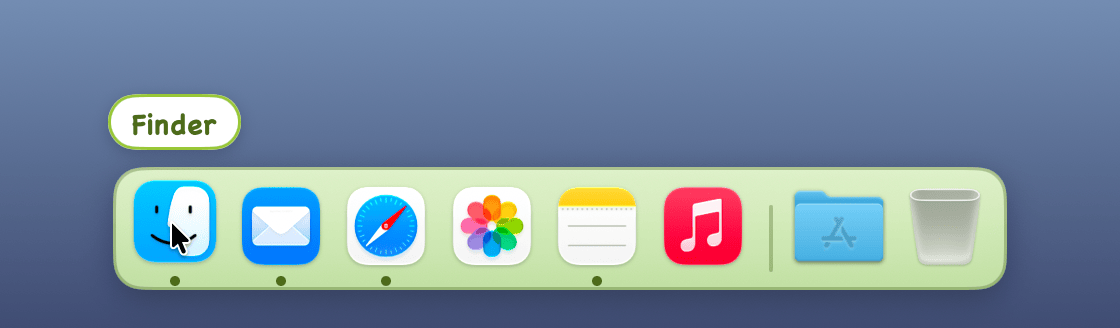
Mustard
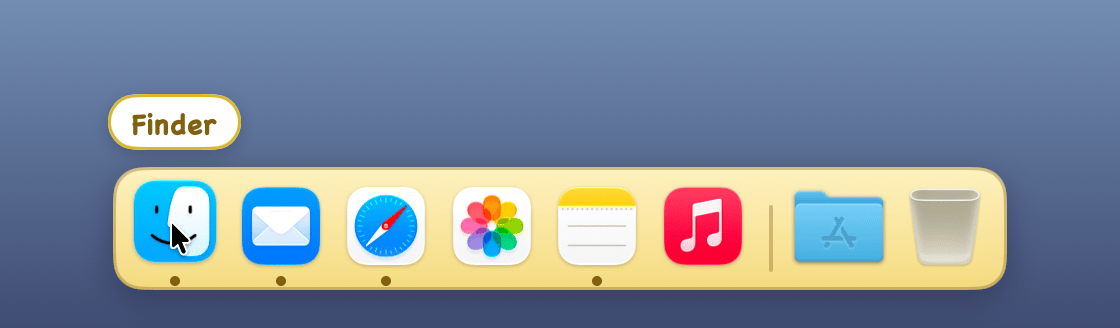
Toxic
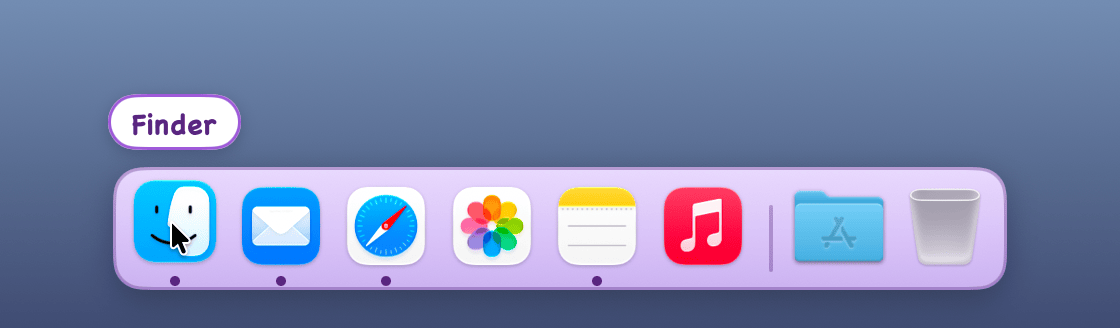
Glass
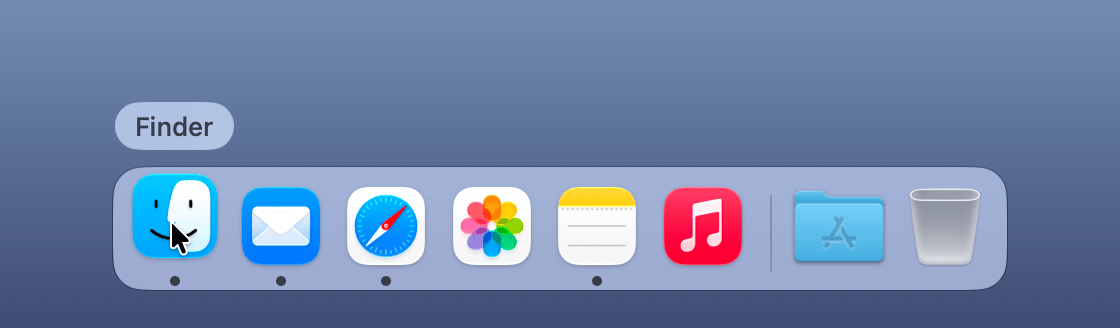
Requirements
macOS 15.6 or later, on Apple silicon or Intel.
Permissions
Gimbap works without any permissions, and better with these two. It asks for them when you first open it, and you can change them any time in System Settings ▸ Privacy & Security.
- Accessibility: lists each app’s windows in its menu, shows badges and minimised windows, and keeps maximised windows above the dock.
- Full Disk Access: shows what’s in the Trash, and each app’s recent documents in its menu.
The macOS Dock
Gimbap takes the macOS Dock’s place while it runs: the Dock waits, hidden, at the bottom of the screen under Gimbap’s (press ⌥⌘D to bring it out). Whenever Gimbap quits, even if it crashes, the macOS Dock goes back exactly as it was.
Current limitations
- The dock sits at the bottom of the screen; left and right positions aren’t supported yet.
- It shows on your main display only.
- Minimised windows show their app’s icon rather than a live preview.
- Stacks open as a list; the Dock’s Grid and Fan views aren’t available.
Uninstalling
Quit Gimbap (right-click the line between the apps and the folders, then Quit Gimbap) and move it to the Trash. The macOS Dock comes back as it was.
Your licence
After you pay, your licence key is shown on the page you land on. It isn’t in your receipt, so email it to yourself or save it as a file from that page.
Download Gimbap, open the disk image and drag Gimbap to Applications. Open it from there, then paste your key and click Activate.
To get your key again, click Copy beside it in Dock Settings ▸ Licence. If you lose it, email us with your receipt.
To move a licence to another Mac, choose Deactivate on This Mac… from the ⋯ menu in Dock
Settings ▸ Licence, then type deactivate me to confirm.
Refunds
If Gimbap isn’t for you, email us within 30 days of buying, with your receipt, and we’ll refund you in full. A refund ends your licence key on every Mac it’s active on, and the money usually reaches you within a week or two. You can also ask for a refund through Link, which handles the payment. None of this limits your rights under your local consumer law.
Updates
Gimbap checks for updates once a day and offers new versions, which are signed and notarised by Apple. You can turn this off in Dock Settings ▸ Updates.
Privacy
Gimbap collects nothing beyond what a licence needs. See the privacy policy.